
CELPIP Test Screen: Timer, Buttons & Tools | CELPIP Store
The CELPIP test screen is simple: a countdown timer sits in the top right corner, a NEXT button moves you forward, and the computer moves you on automatically when time runs out. The most important rule is that the official test only goes one way: once you leave a page or a part, you cannot go back to change your answers.
This guide walks you through everything you will see and use on the CELPIP screen, section by section. You will learn how the timer and buttons work, what the Listening, Reading, Writing and Speaking screens look like, which tools you get (such as the word counter and spell check), what you cannot do on the computer, and how to practise so the screen feels familiar before test day. Every rule here comes from official CELPIP pages and study packs, listed in the Sources section at the end.
How the CELPIP test is delivered
CELPIP is a fully computer-delivered test. You take it in person at a test centre, sitting at a computer with a mouse, a keyboard and a headset. Paragon Testing Enterprises, the organization that runs CELPIP, says you must be familiar with using a computer mouse and keyboard to take the test. You do not need advanced computer skills, but you do need to be comfortable clicking, scrolling, choosing from menus and typing.
The CELPIP-General test is done in one sitting of about three hours. The official guidebook gives these times: Listening 46 to 55 minutes, Reading 43 to 56 minutes, Writing 53 minutes and Speaking 15 minutes.
The CELPIP-General LS test, used mainly for citizenship, has only the Listening and Speaking components, with the same screens and timings for those two parts. For a full breakdown of every part and its timing, read our guide How Long Is the CELPIP Test? Timing of Every Part, and for the content of each section see CELPIP Test Format: All Four Sections at a Glance.
The equipment the test centre gives you
You do not bring any equipment. The official FAQs say the test centre provides a headset and microphone for Listening and Speaking, and it also gives you paper for notes. Speaking is done on the computer, not as a face-to-face interview.
The main parts of the CELPIP test screen
Every page of the test follows the same basic design. Once you know these few elements, nothing on the screen will surprise you.
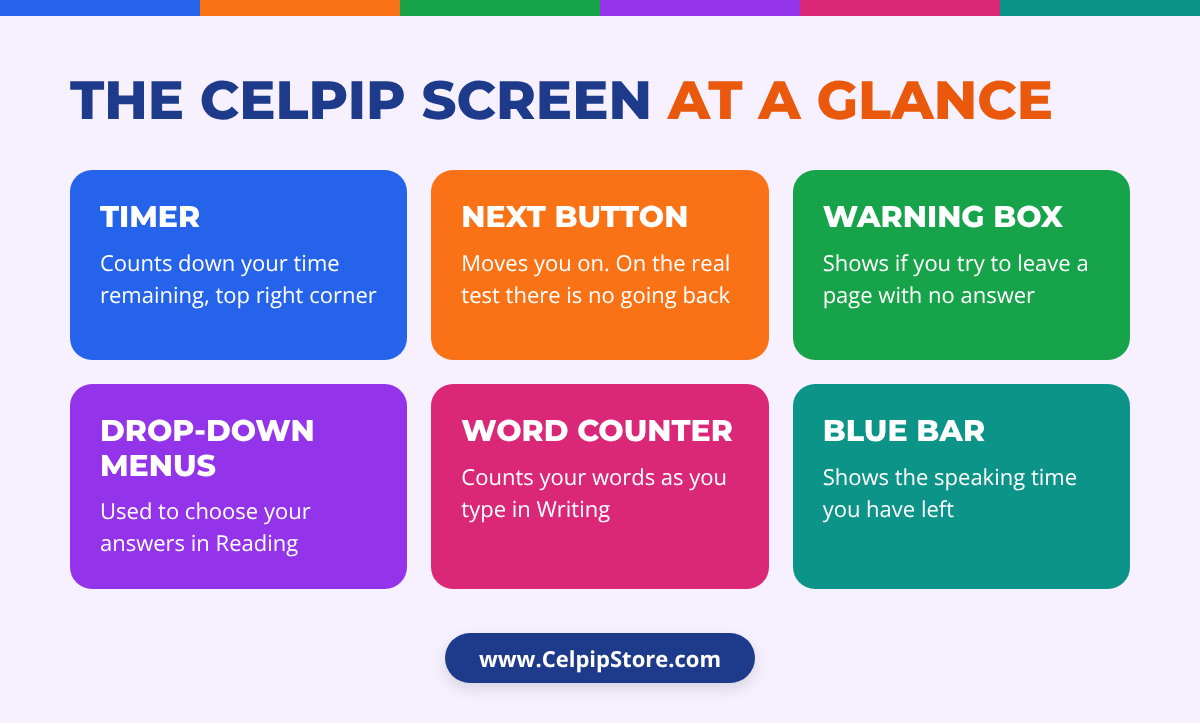
The timer
A countdown timer shows how much time you have left. On the official free sample test, it appears in the top right corner with the label "Time remaining," and the instructions tell you to watch the timer in the top right corner so that you finish before the time is up. The official guidebook calls this a "personal timer." In the Reading section, the official overview describes it as a countdown timer that helps you manage your time. In Speaking, the time you have left is shown in a different way, with a progress bar, which we explain in the Speaking section below.
The NEXT button
The NEXT button takes you to the next page. On the free practice tests there is also a BACK button, but this is a practice feature only. The official instructions on the sample test say clearly: "On the official test, once you leave a page, you cannot go back to it to change your answers. However, in this sample test, you can."
In many parts of the real test you do not need to press NEXT at all. The official overview of the Listening test says the test will move forward automatically, and if you do click NEXT, you will not be able to go back to a previous screen.
The "No answer(s) selected" warning
If you try to leave a page without answering, the sample test shows a warning: "No answer(s) selected. On the official test, if you go to the next page, you will no longer be able to answer the question(s) on this page." You can then choose Keep working on this page or Skip and go to the next page. Treat this warning as a final check. If you see it, stay on the page, choose an answer for every question and only then move on.
How navigation works: the one-way rule
The single most important thing to understand about the CELPIP screen is that the test moves in one direction. Here is how the official study packs describe it:
- Inside a part, you can change answers. In each Reading part, you can change your answers as many times as you like until your time is up. In Listening, you can change your answers as much as you like until the time for that question or section is up.
- When time is up, the test moves on by itself. When your time runs out, the test automatically moves forward to the next screen or part.
- You cannot go back to a previous part. Both the Listening and Reading study packs state that you can't go back to a previous part of the test.
- Writing and Speaking work the same way. If you do not finish Writing Task 1 in 27 minutes, the screen moves to Task 2 and you cannot go back to Task 1. In Speaking, if you do not finish a task in the time provided, the screen moves to the next task and you cannot return.
Why pressing NEXT early costs you time
Unused time does not carry over. The official overview explains that if you click NEXT before the time for a Listening question is up, you lose the leftover time, and it cannot be moved to other parts. So finishing a part early does not give you extra minutes later. Instead, use spare time on the current page to check your answers, which is exactly what the official overview recommends.
The Listening screen
The Listening section has six parts, and each part has its own screen pattern. These are the key rules from the official Listening study pack:
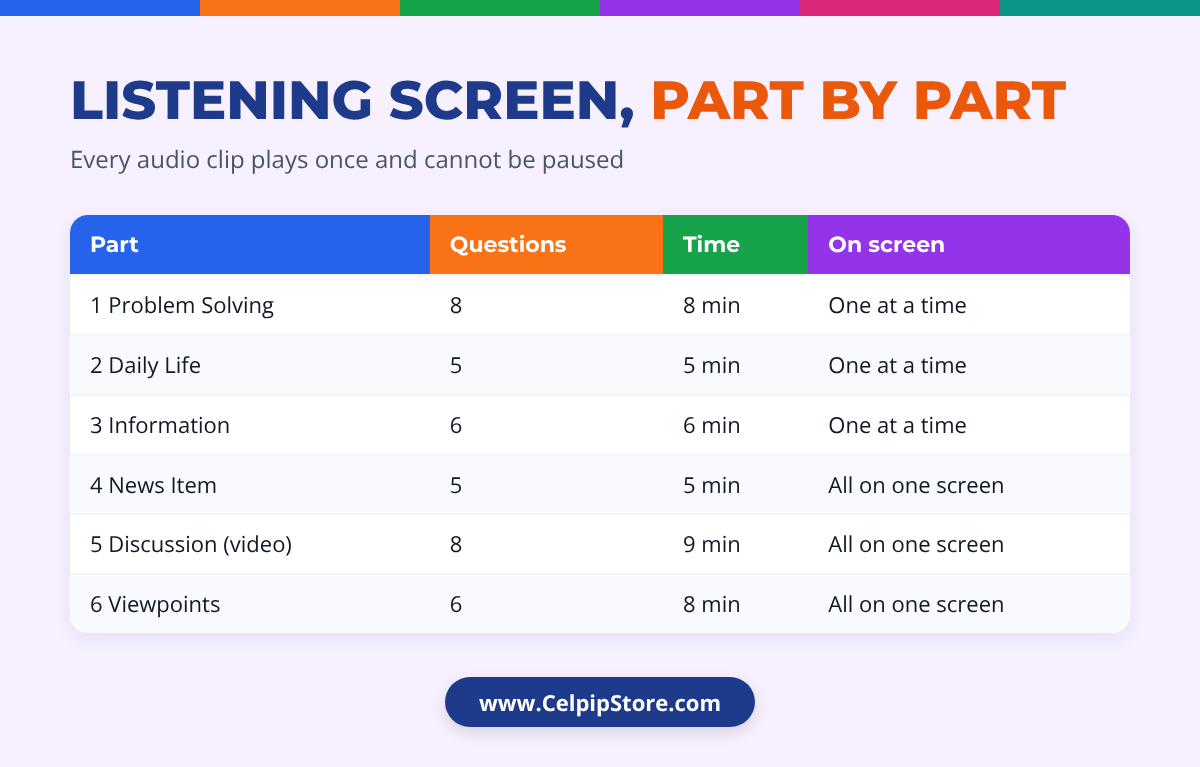
- Audio plays once only. "All audio clips are played one time only."
- Audio starts by itself and cannot be paused. "Audio clips begin automatically and can't be paused."
- Questions come after the audio. You listen first, then answer.
- Every question is multiple choice. You choose the best answer from four options, and each question has one correct answer.
Parts 1 to 3: one question at a time
In Parts 1, 2 and 3, the questions appear one at a time. You hear each question and read its four choices, and you have 30 seconds to hear and answer each question. You must answer the questions in the order they are presented. In Part 1, there are two or three questions after each of its three audio sections.
Parts 4 to 6: all questions on one screen
In Parts 4, 5 and 6, all the questions appear on the same screen after the audio, and you can answer them in any order. You get a set amount of time to answer everything on that screen. Part 5 is different from the others because it is a video: you watch a discussion, and the official pack advises using facial expressions and body language to help you understand the speakers' feelings and attitudes. You will not be tested on visual details that have nothing to do with the conversation.
| Listening part | Questions (approx.) | Time (approx.) | How questions appear |
|---|---|---|---|
| Part 1: Problem Solving | 8 | 8 minutes | One at a time, 30 seconds each |
| Part 2: Daily Life Conversation | 5 | 5 minutes | One at a time, 30 seconds each |
| Part 3: Information | 6 | 6 minutes | One at a time, 30 seconds each |
| Part 4: News Item | 5 | 5 minutes | All on one screen |
| Part 5: Discussion (video) | 8 | 9 minutes | All on one screen |
| Part 6: Viewpoints | 6 | 8 minutes | All on one screen |
How to handle the Listening screen
- Set up your notes before the audio starts. The official pack repeats this advice for several parts. Write the part number and a few headings on your paper while the instructions are on screen.
- Listen once with full attention. Because there is no replay and no pause, do not look away or try to fix your headset during the audio.
- In Parts 1 to 3, answer within 30 seconds. If you are unsure, choose your best guess. Points are not taken away for wrong answers.
- In Parts 4 to 6, keep an eye on the timer. Answer the easy questions first, then go back to the hard ones on the same screen. The pack suggests giving yourself roughly 30 seconds per question in Part 5.
For more on writing useful notes while you listen, see our guide Strategies for Excelling in the CELPIP Listening Test: Note-Taking and Recall.
The Reading screen
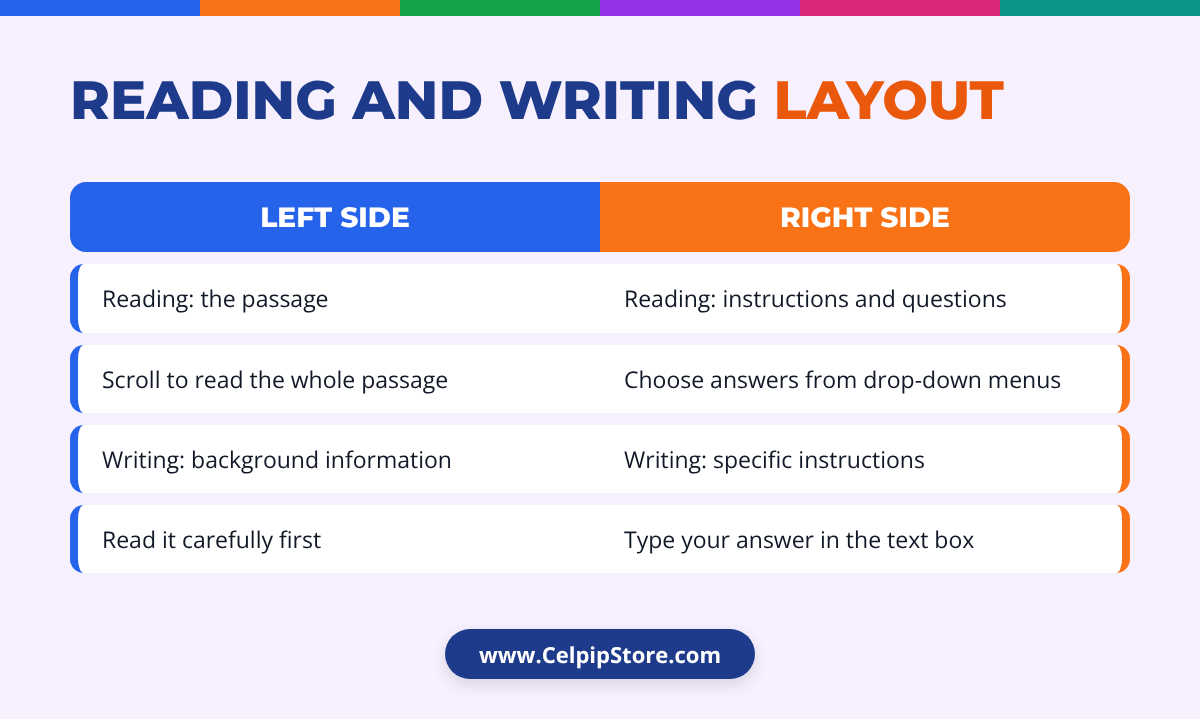
The Reading screen is split into two sides. According to the official overview, the passage is on the left, and the instructions and work area are on the right. All the questions for a part appear on the screen at the same time, and you choose each answer from a drop-down menu. You use the scroll bars to move through the passage and through the questions.
What each part looks like
The Reading study pack gives these approximate figures for each part:
- Part 1 (Reading Correspondence): about 11 questions in about 11 minutes.
- Part 2 (Reading to Apply a Diagram): about 8 questions in about 9 minutes.
- Part 3 (Reading for Information): about 9 questions in about 10 minutes. This part has an extra answer choice: the instructions tell you to choose E if the information is not stated in the reading.
- Part 4 (Reading for Viewpoints): about 10 questions in about 13 minutes.
The passages and questions get harder from Part 1 to Part 4. There are 38 scored questions, each correct answer earns one point, and wrong answers are not penalized.
Working with drop-down menus
Read every option before you choose, check that your choice now shows in the box, and before time ends scroll through the right side once more to make sure no menu is still blank.
A pacing example
In Part 4 you have about 13 minutes for about 10 questions, so roughly 78 seconds per question. The official overview suggests skimming the passage for no more than 30 to 40 seconds first and then scanning for answers. If you spend 40 seconds skimming, you still have a little over a minute for each question. Watching the countdown timer in the corner helps you notice if one question is taking far too long. For more speed strategies, see CELPIP Reading Time Management Strategy.
The Writing screen
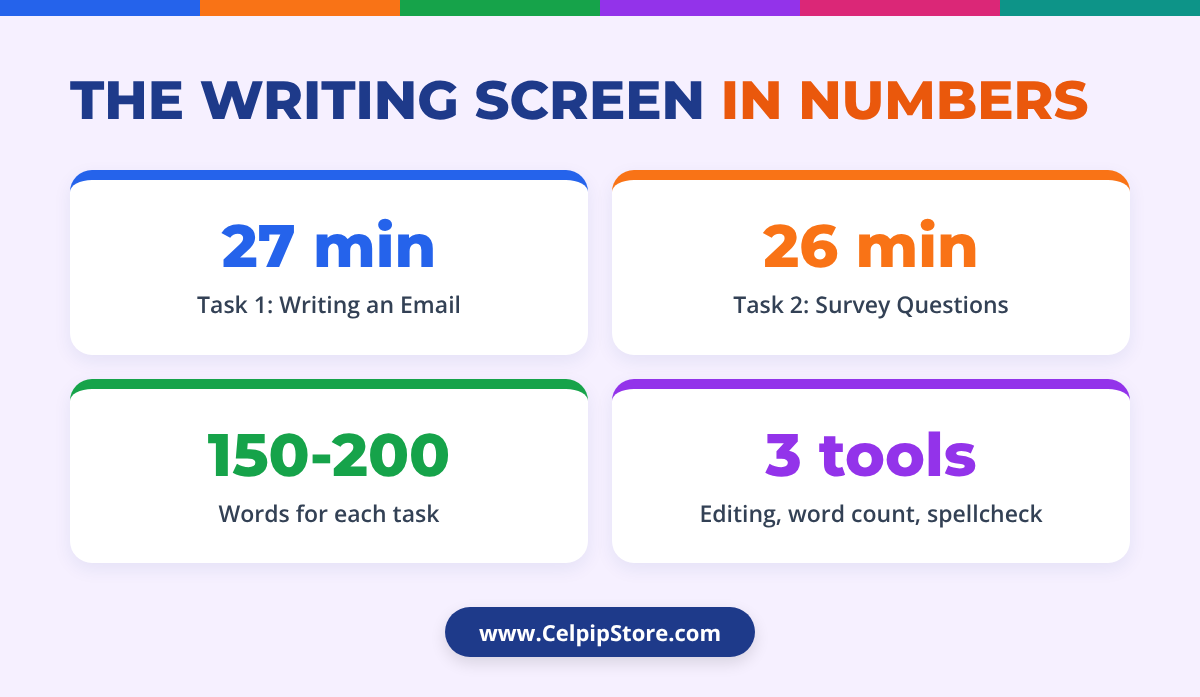
Writing is the section where you use the keyboard most. You complete two tasks: Task 1 is an email, and Task 2 is a response to survey questions, which does not need email format. The official overview gives these details:
| Writing task | Time | Length | Format |
|---|---|---|---|
| Task 1: Writing an Email | 27 minutes | 150 to 200 words | |
| Task 2: Responding to Survey Questions | 26 minutes | 150 to 200 words | No email format needed |
The layout and tools
On the Writing screen, the background information is on the left side and the specific instructions are on the right. You type your answer in a text box. The official overview lists three tools: basic editing tools, an automatic word count, and spellcheck. The official guidebook also lists the word counter and spell-check among the features of the computer-delivered test.
- Word counter: it counts your words as you type, so you do not need to count by hand. Use it to make sure you are inside the 150 to 200 word range.
- Spellcheck: it helps you catch spelling mistakes. A spellchecker only checks spelling, so it cannot tell you if you used the wrong word, the wrong tense or poor punctuation. You still need to proofread.
- Basic editing tools: these let you make simple changes to your text. Plan your answer first so you do not need to move large blocks of text around.
The automatic switch from Task 1 to Task 2
The two tasks have separate times. If you do not finish Task 1 in 27 minutes, the screen moves to Task 2, and you cannot go back to Task 1. This means you cannot "borrow" time from Task 2 to finish Task 1, or the other way around.
A simple 27-minute plan for Task 1
Many test takers find it helpful to split each Writing task into three stages. This is one example for Task 1:
- About 3 to 4 minutes: read the left and right sides carefully and list the points the instructions ask you to cover.
- About 18 to 20 minutes: type the email, one paragraph for each point.
- About 4 to 5 minutes: check the word counter, fix anything the spellcheck marks and reread for grammar and missing points.
Use the same idea for Task 2, adjusted for 26 minutes. If typing speed worries you, read our guide Ways to Improve Computer Typing and Score More in CELPIP Writing.
The Speaking screen
Speaking is the last component of the CELPIP test and takes about 15 minutes. There is no examiner in front of you. You read a prompt on the screen (some tasks also show a picture), prepare silently, then speak into the microphone. Your answers are recorded and rated later.
Preparation time and speaking time
Each task has a preparation time and a speaking time. The official Speaking study pack lists them like this:
| Speaking task | Preparation time | Speaking time |
|---|---|---|
| Task 1: Giving Advice | 30 seconds | 90 seconds |
| Task 2: Talking about a Personal Experience | 30 seconds | 60 seconds |
| Task 3: Describing a Scene | 30 seconds | 60 seconds |
| Task 4: Making Predictions | 30 seconds | 60 seconds |
| Task 5: Comparing and Persuading | 60 seconds to choose, then 60 seconds | 60 seconds (Part 2 only) |
| Task 6: Dealing with a Difficult Situation | 60 seconds | 60 seconds |
| Task 7: Expressing Opinions | 30 seconds | 90 seconds |
| Task 8: Describing an Unusual Situation | 30 seconds | 60 seconds |
Task 5 has two screens. On the first, you choose one of two options and do not speak. On the second, you get your own preparation and speaking time to persuade someone.
What happens on screen during a task
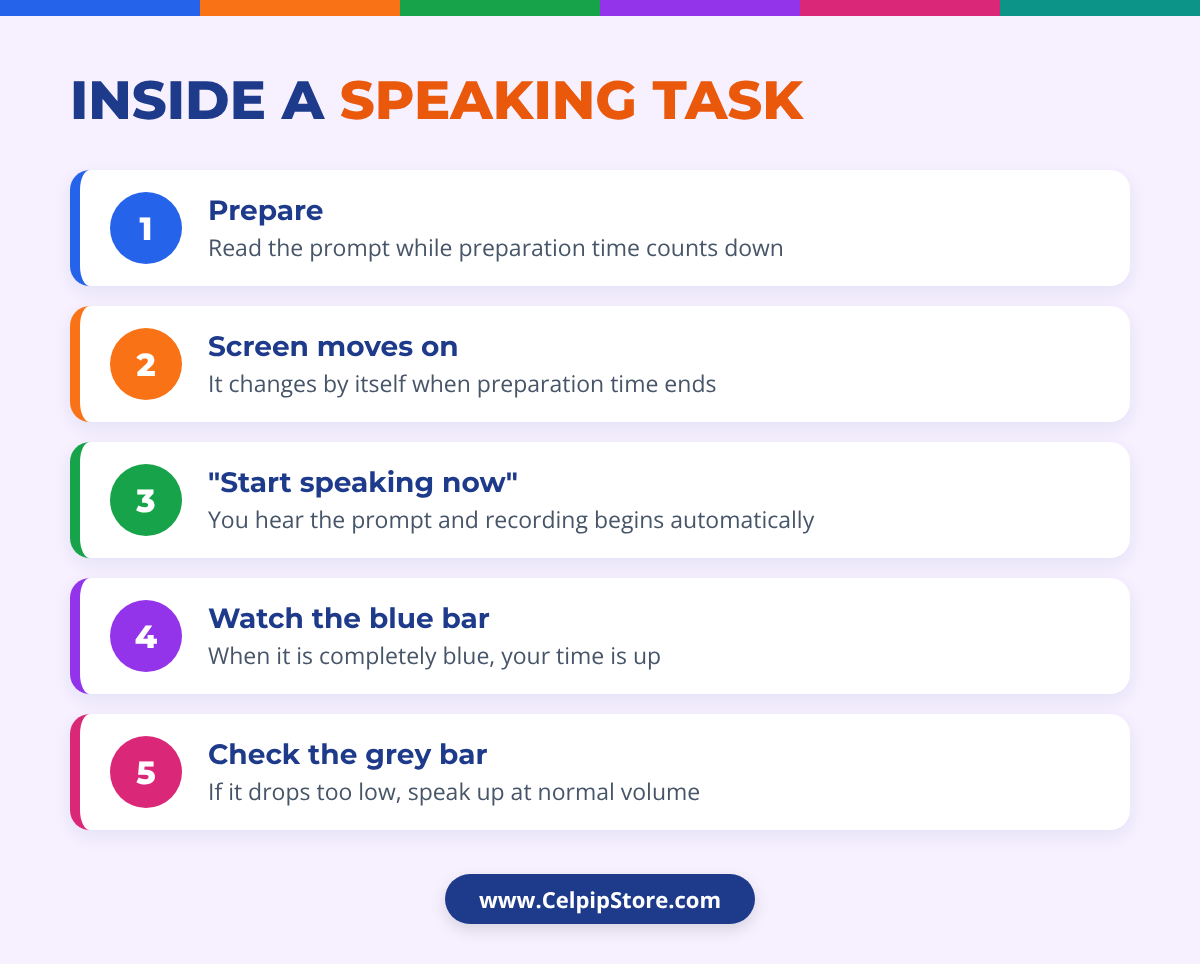
- Preparation: the prompt is on the screen and the preparation time counts down.
- Automatic move: when the preparation time is up, the screen automatically moves forward. You do not click anything.
- Start speaking: you hear the prompt "Start speaking now," and recording begins automatically.
- Blue progress bar: when you begin speaking, a blue progress bar in the centre of the screen shows how much time you have left. Once the bar is completely blue, your time is up.
- Grey microphone bar: as you speak, the grey bar behind the microphone icon moves up and down. If it drops too low, your recording may not be audible.
Speak at your normal volume. The official pack says that even with some background noise in the room, the raters will be able to hear your response clearly as long as you speak at a normal volume.
Finishing on time
The recording stops when the time ends, even if you are in the middle of a sentence. The official sample responses show that an answer can still score well when it is cut off at the end, as long as it completes all the task requirements before time is up. So cover your main points early, and use any remaining seconds for a short summary.
Notes, paper and what you cannot do on screen
You can take notes, but only on paper. The official FAQs say paper will be supplied at the test centre for any notes you wish to write, and it must be returned to the Test Centre Supervisor at the end of the test. You may not bring any other paper into the test room. The Listening study pack adds that you will receive paper and a pen, that you can ask for more paper if you need it, and that your notes have no impact on your score.
There are also things you cannot do on the computer. The Reading study pack says you will not be able to make notes, highlight or mark text on the computer screen. Plan for this when you practise: if you usually underline key words on paper, train yourself to write a few words on your note paper instead.
Keep notes short: use key words and symbols rather than full sentences, and write the part number at the top of each new set of notes. In Listening Part 5, the official pack suggests labelling your notes by the speakers' positions on screen as they are introduced.
Timers, breaks and unscored items
The timer does not stop for water breaks
Food and drink are not allowed in the test room. If you need water during the test, you raise your hand. The official FAQs warn that the exam timer will continue running during any water breaks. So drink water before you start, and if you must take a break, try to do it at a moment that costs you little, for example when you have already answered every question on a screen.
Unscored questions look exactly like scored ones
The CELPIP test may contain unscored Reading or Listening items used for test development. They can appear anywhere and look the same as the other parts, and you will not be able to tell them apart. The official sample tests also note that the real Listening and Reading sections may be slightly longer than the samples for this reason. The official advice is to apply your best effort to the entire test. The time spent on unscored content is included in the total test time and does not take time away from scored tasks.
See the format before test day
The official free sample test includes a Reading practice task with a short message and drop-down questions, so you can try the answer format before you meet it in a scored part.
Technical problems and accommodations
If something goes wrong during the test
If your headset, microphone or computer does not work properly, tell the staff at once. The official test day page says to report any issues that occur during your test to the test centre personnel immediately. If you want Paragon to review the issue, you must also report it through your CELPIP Account within 24 hours of your test: under your registration, click "Actions" and select "Report a Test Day Issue." Reports made after 24 hours or after scores are released will not receive corrective action.
If you need special arrangements
If you have a disability or special condition that might require special arrangements, the official FAQs ask you to fill out the Special Accommodations Request Form. Send it well in advance: the FAQs say requests need at least two months' notice. Do this before you book, so the centre can prepare.
How to practise with the test screen before test day
The best way to make the screen feel normal is to practise on a computer in the same format. Paragon offers two free online practice tests with answer keys and Listening transcripts. The sample test instructions say the Listening and Reading tests are identical in format to the official test, except that the official sections may be slightly longer. Note that the free sample test needs a screen resolution of at least 1024 x 768.
A five-step practice plan
- Take one full test on a computer. Sit at a desk, use headphones and a mouse, and follow the timer. Do not use the BACK button, because the real test does not have one.
- Practise the one-way rule. Before you click NEXT, ask yourself: "Have I answered every question on this page?"
- Take notes on paper only. Keep a pen and a few sheets beside you, and do not highlight or type notes on the screen.
- Type your Writing answers. Practise watching the word counter and finishing each task within its own time.
- Record your Speaking answers. The free sample test does not record you, so the official instructions suggest recording your responses with your computer microphone or your phone. Listen back to check your volume and timing.
At CELPIP Store you can also practise with computer-based tests built in the CELPIP format. Start with our free CELPIP practice test, or create a free account to save your progress and try more tests.
Common mistakes on the CELPIP test screen
Most screen problems are easy to avoid once you know about them. These are the ones to watch for:
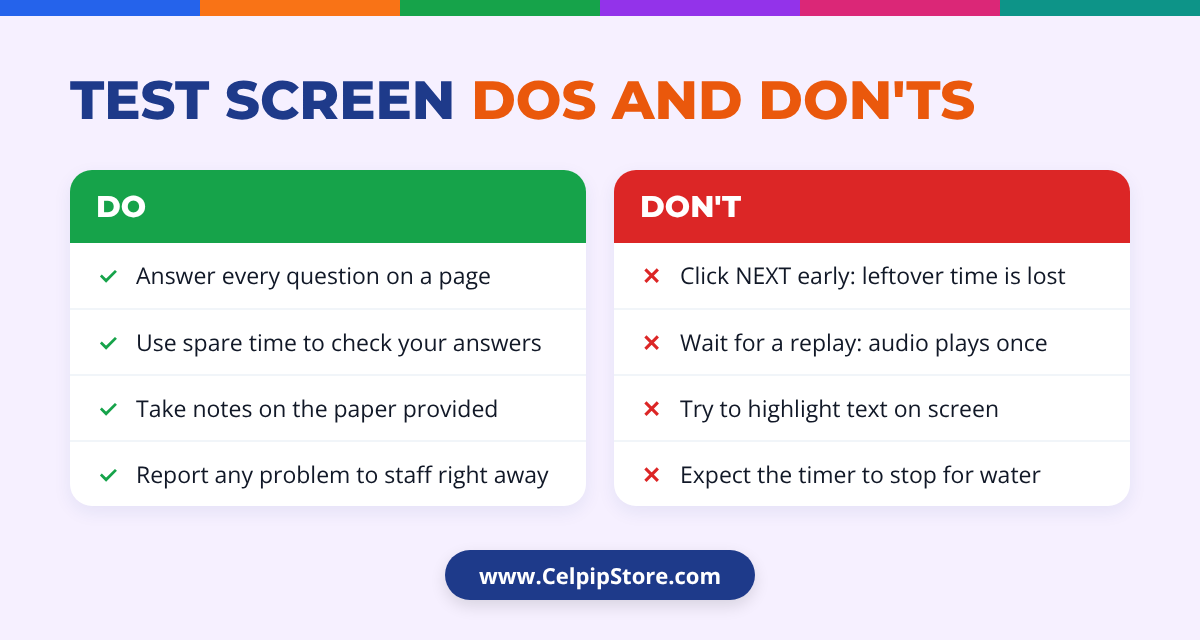
- Clicking NEXT too early. You lose the remaining time, and you cannot return to the page.
- Leaving a drop-down menu blank. A blank answer can never earn a point, while a guess might. Check every menu before the time ends.
- Waiting for a replay. Listening audio plays once and cannot be paused, so be ready before it starts.
- Trying to highlight on screen. You cannot mark the Reading text, so use your paper for key words.
- Running out of time in Writing Task 1. The screen moves to Task 2 automatically, and your Task 1 answer stays as it is.
- Speaking too quietly. If the grey microphone bar stays very low, your recording may be hard to hear.
- Expecting the timer to stop for a break. It keeps running during water breaks.
Common questions
Can I go back to a previous question on the CELPIP test?
Only while you are still on the same screen or part. Inside a Reading part, or on a Listening screen with several questions, you can change answers until the time for that part is up. Once you leave a page or the time runs out, you cannot go back. Listening Parts 1 to 3 must be answered in order, one question at a time.
Is there a timer on the CELPIP screen?
Yes. A countdown timer shows your time remaining. On the official sample tests it appears in the top right corner. In Speaking, a blue progress bar in the centre of the screen shows how much speaking time you have left.
Does the CELPIP Writing section have spell check and a word counter?
Yes. The official CELPIP overview lists basic editing tools, an automatic word count and spellcheck on the Writing screen. Spellcheck only helps with spelling, so you should still check grammar and word choice yourself.
Can I replay the Listening audio?
No. All audio clips play one time only, they start automatically, and they cannot be paused. Prepare your notes before each clip begins.
Can I write notes during the test?
Yes, on the paper the test centre gives you. You can ask for more paper if you need it. You must hand the paper back at the end, and you cannot bring your own paper. You cannot make notes or highlight on the computer screen.
Do I need to click a button to start speaking?
No. When your preparation time ends, the screen moves forward by itself, you hear "Start speaking now," and recording starts automatically. Just begin talking at a normal volume.
Sources
- CELPIP: Frequently Asked Questions
- CELPIP: What to Bring on Test Day
- CELPIP Guidebook for Test Takers (July 2026)
- CELPIP-General Overview Study Pack (2026)
- CELPIP Listening Pro Study Pack (2026)
- CELPIP Reading Pro Study Pack (2026)
- CELPIP Speaking Pro Target 9+ Study Pack (2026)
- Paragon Testing: Free Online Sample Test (Reading instructions)
- Paragon Testing: Free Online Sample Test (Writing instructions)
- Paragon Testing: Free Online Sample Test (Speaking instructions)